StorageProduct guide

Cloud Storage

Keep farm-owned operational files and employee-owned documents in separate account scopes while giving connected farms the worker views they need. Farmroute organizes templates, completed submissions, payroll exports, shift exports, retained employee copies, usage, and permissions without using folder placement as a substitute for ownership.

  • 10 GB farm storage
  • 500 MB employee storage
  • Workforce worker folders
  • Template submission records
  • Automatic export folders
  • Farm-retained copies

Inside the app

See the workflow.

Actual Farmroute screens from the farm and employee demo accounts.

01 · Separate account storage

Farm files and employee files keep different owners.

The farm receives its own operational storage while an employee’s included storage follows that employee profile across relationship changes.

Farm profile01
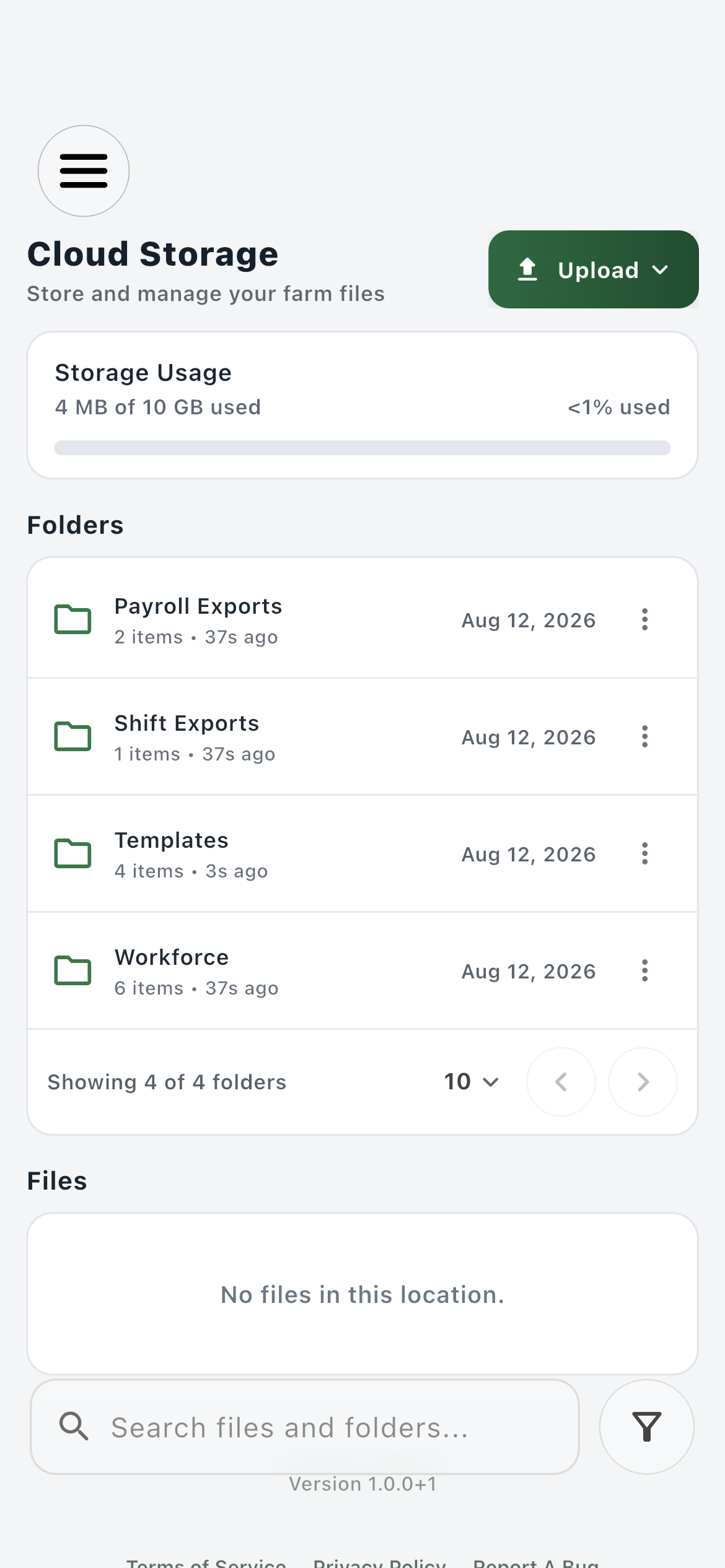
Farmroute farm Cloud Storage with usage and Payroll Exports, Shift Exports, Templates, and Workforce folders
The farm’s 10 GB included account area holds farm records, protected system folders, generated exports, and workforce-linked views.
Employee profile02
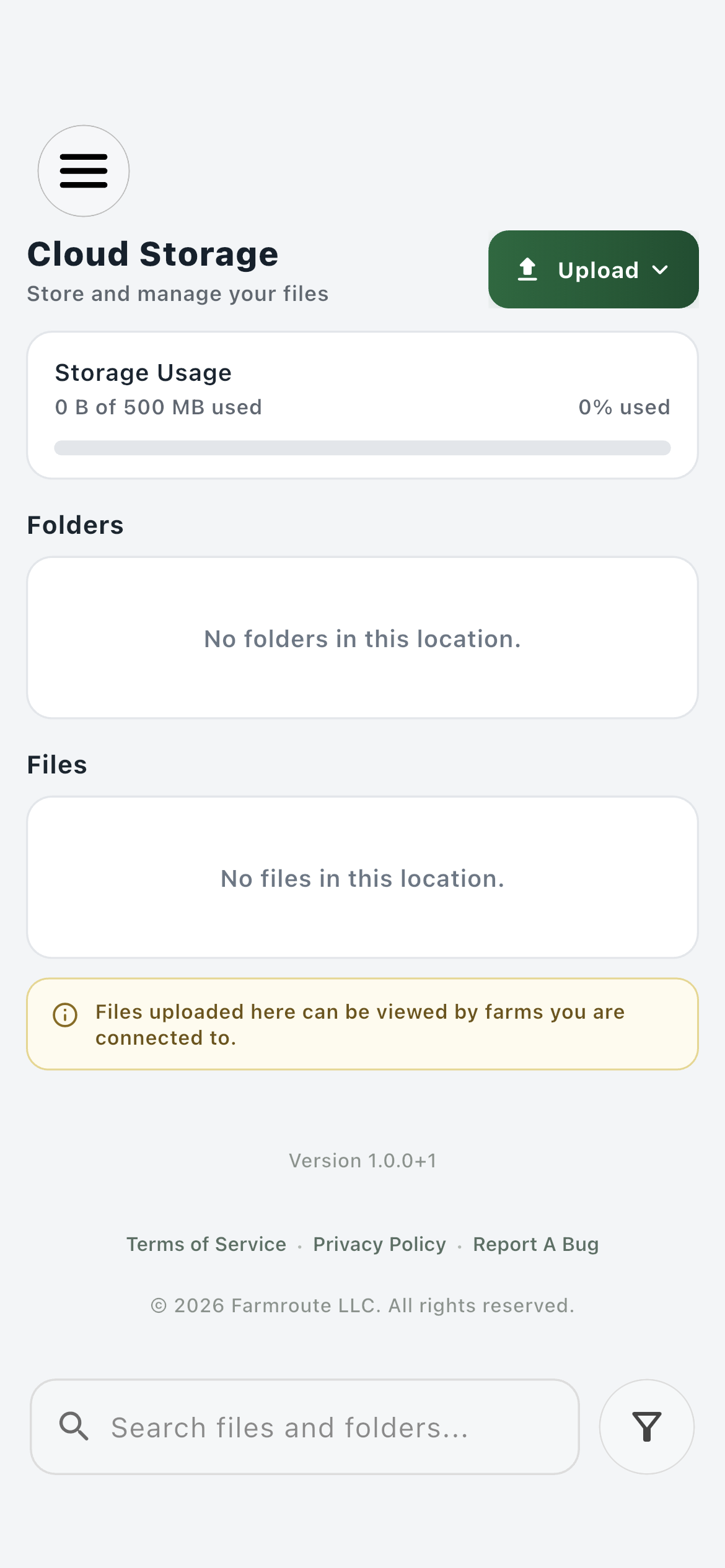
Farmroute employee Cloud Storage showing the separate 500 MB employee quota and connected-farm visibility notice
The employee’s separate 500 MB area belongs to the profile; connected farms may view eligible files without becoming their owner.
02 · Workforce records

Reach the same worker context from Workforce or Storage.

The Workforce root organizes eligible workers for the farm, while the worker profile’s Storage tab opens a focused view for that person’s documents and retained farm records.

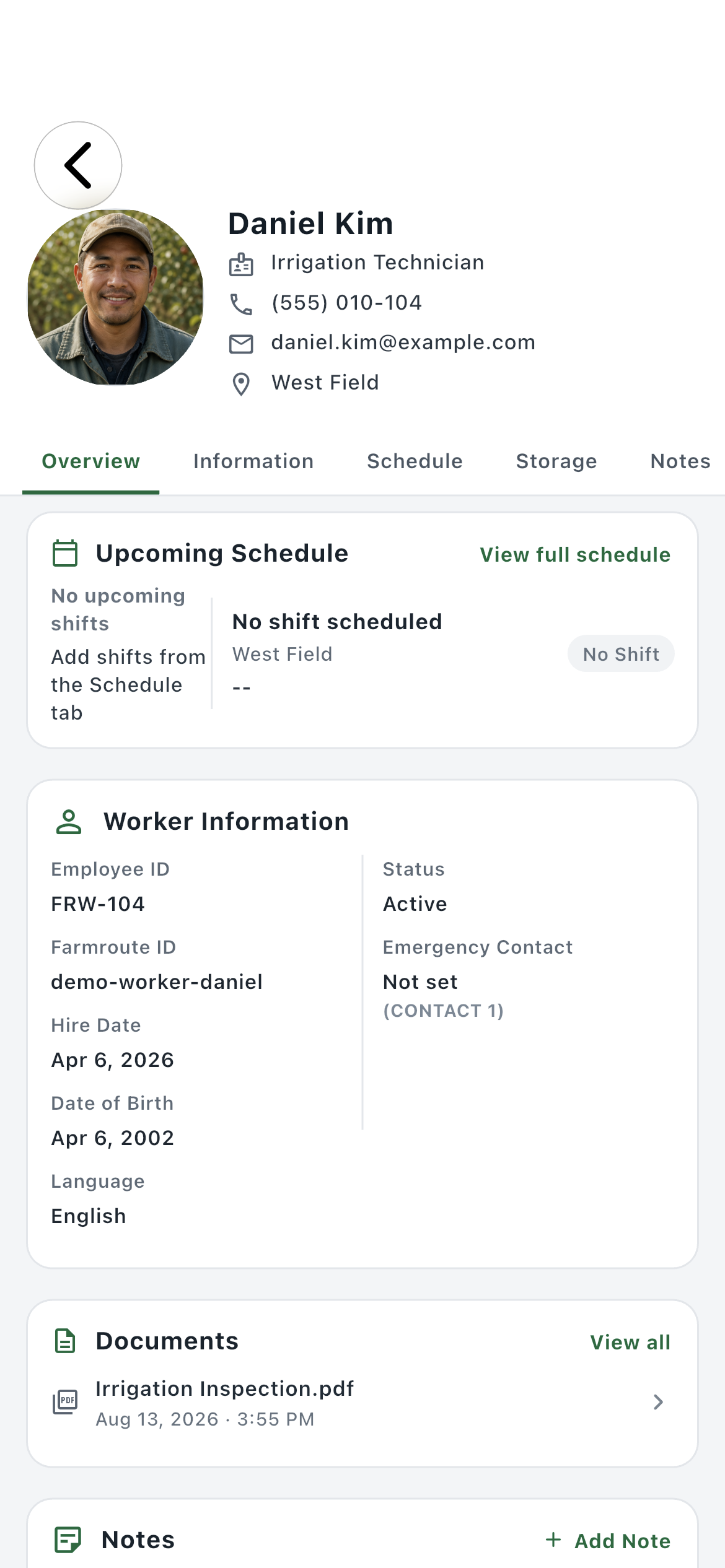
Worker profile01
Farmroute workforce worker profile with Overview, Information, Schedule, Storage, and Notes tabs
A worker record keeps Storage beside the person’s overview, information, schedule, and farm notes instead of separating documents from the employment context.
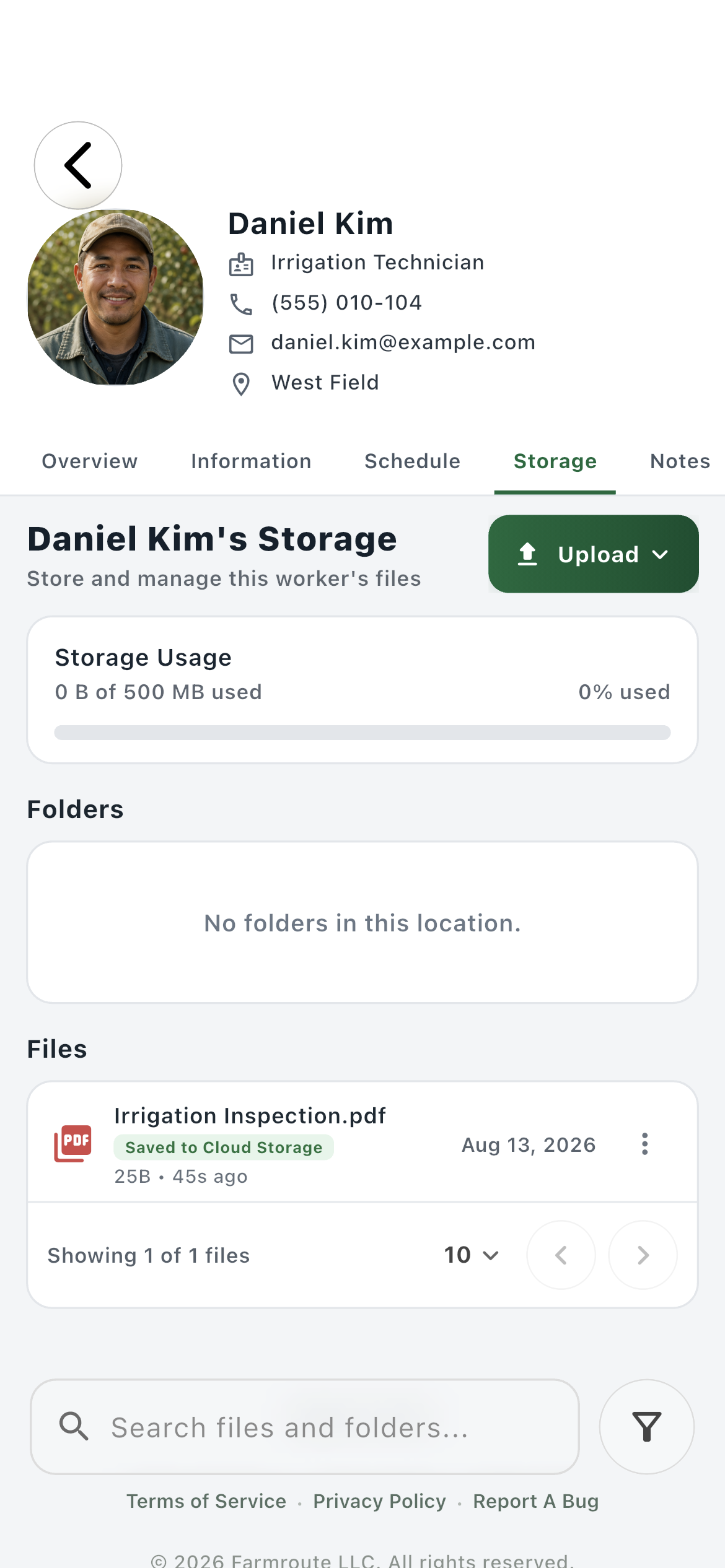
Worker Storage tab02
Farmroute worker profile Storage tab with a farm-retained cloud file
The scoped view can show relationship-visible employee files and farm-owned records, including a clearly labeled file saved into farm Cloud Storage.
03 · Templates and submissions

Keep the reusable template separate from each completed record.

Template definitions live in the protected Templates area. A completed request becomes a farm-owned PDF under the submitting worker only after every required employee and recursive farm stage is complete.

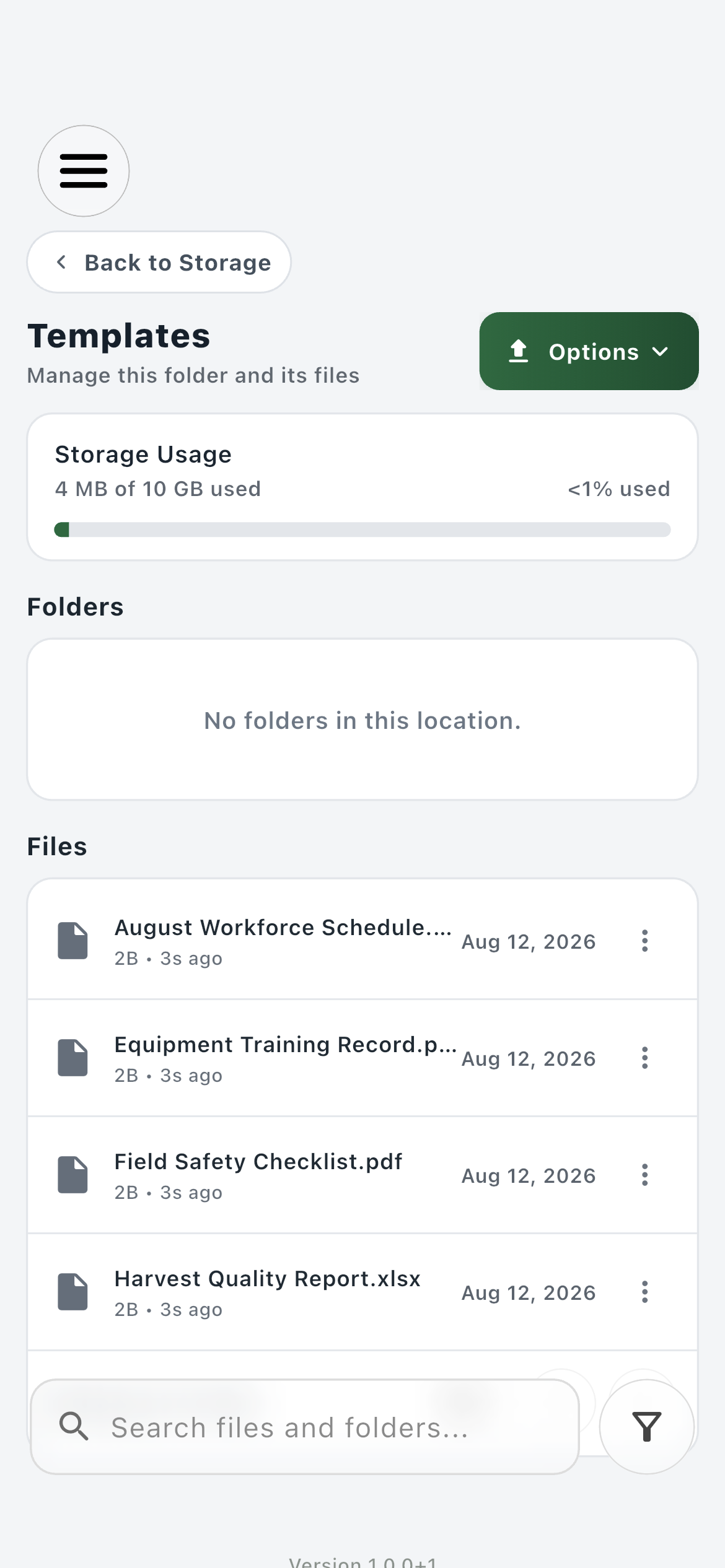
Template library01
Farmroute protected Templates folder containing reusable farm document templates
The protected Templates folder mirrors the farm’s reusable template library and opens each template’s mapping, assignment, and information tools.
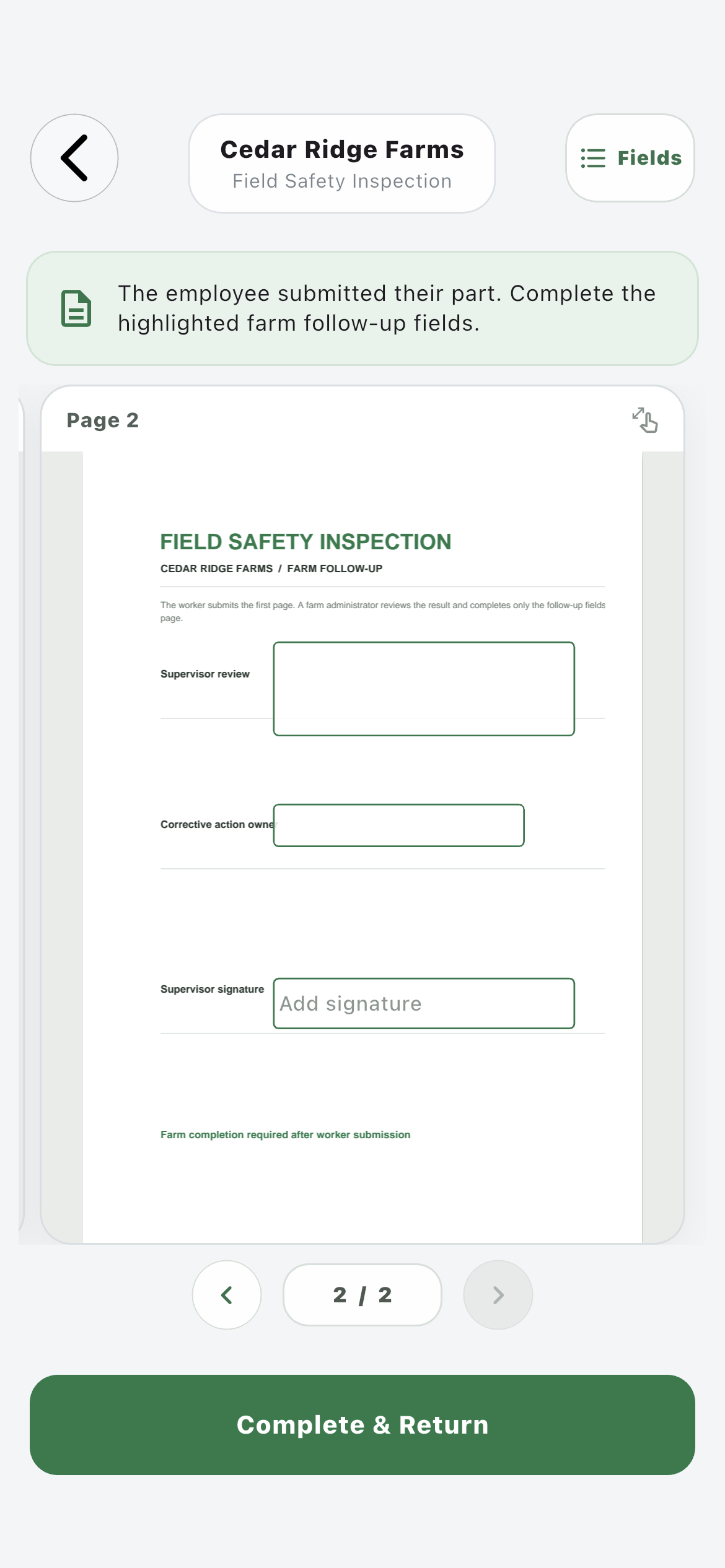
Recursive completion02
Farmroute farm follow-up page fully rendered behind recursive fields on an employee-submitted template
The original farm follow-up page remains visible beneath the mapped fields while the farm completes its stage before Farmroute retains the final PDF.
04 · Generated records

Exports create their own account-scoped folders.

Schedule and payroll actions generate duplicate-safe filenames and place the result in a predictable folder, so exports do not have to be found in an undifferentiated upload list.

Shift Exports01
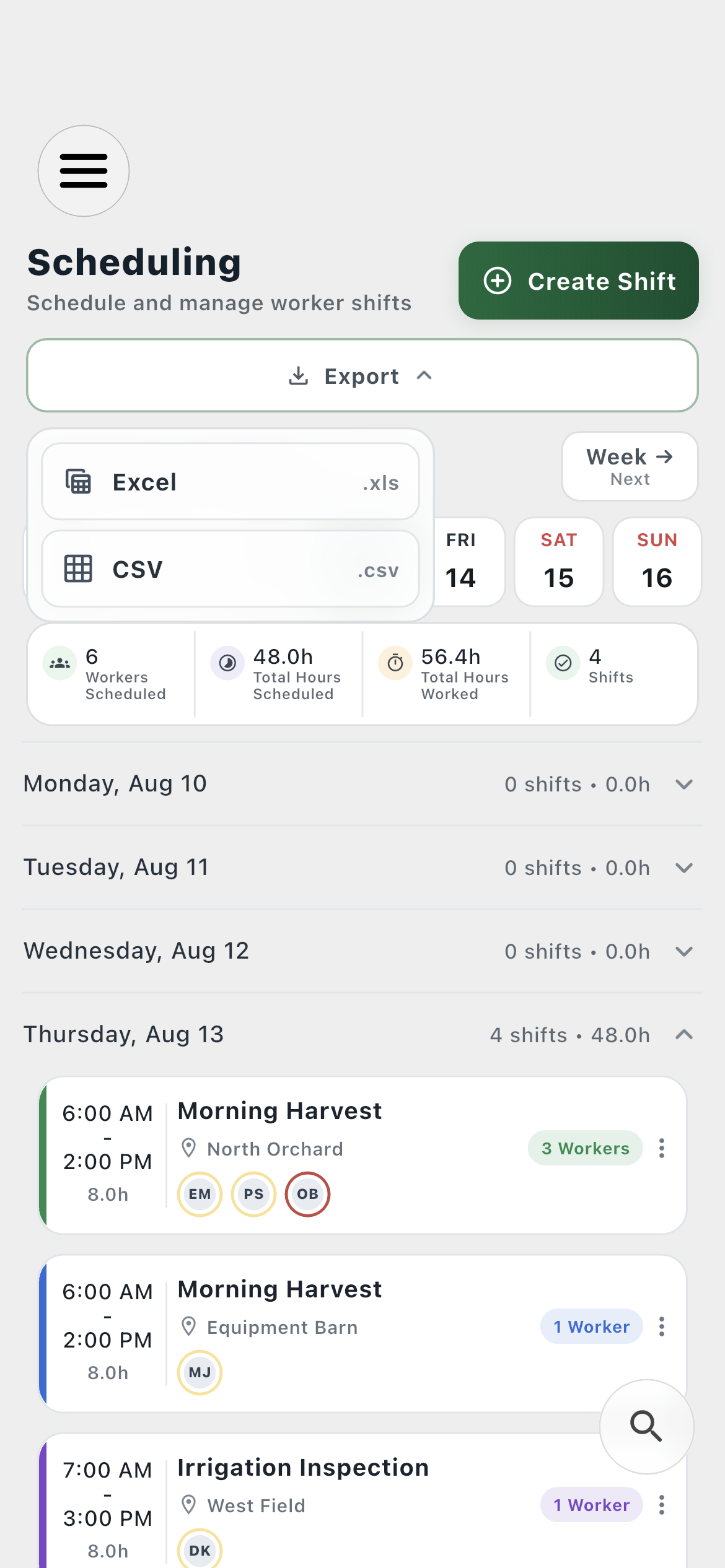
Farmroute schedule export control offering Excel and CSV
A single-shift or schedule-range export creates the Shift Exports folder when needed and stores the generated .xls or .csv record there.
Payroll Exports02
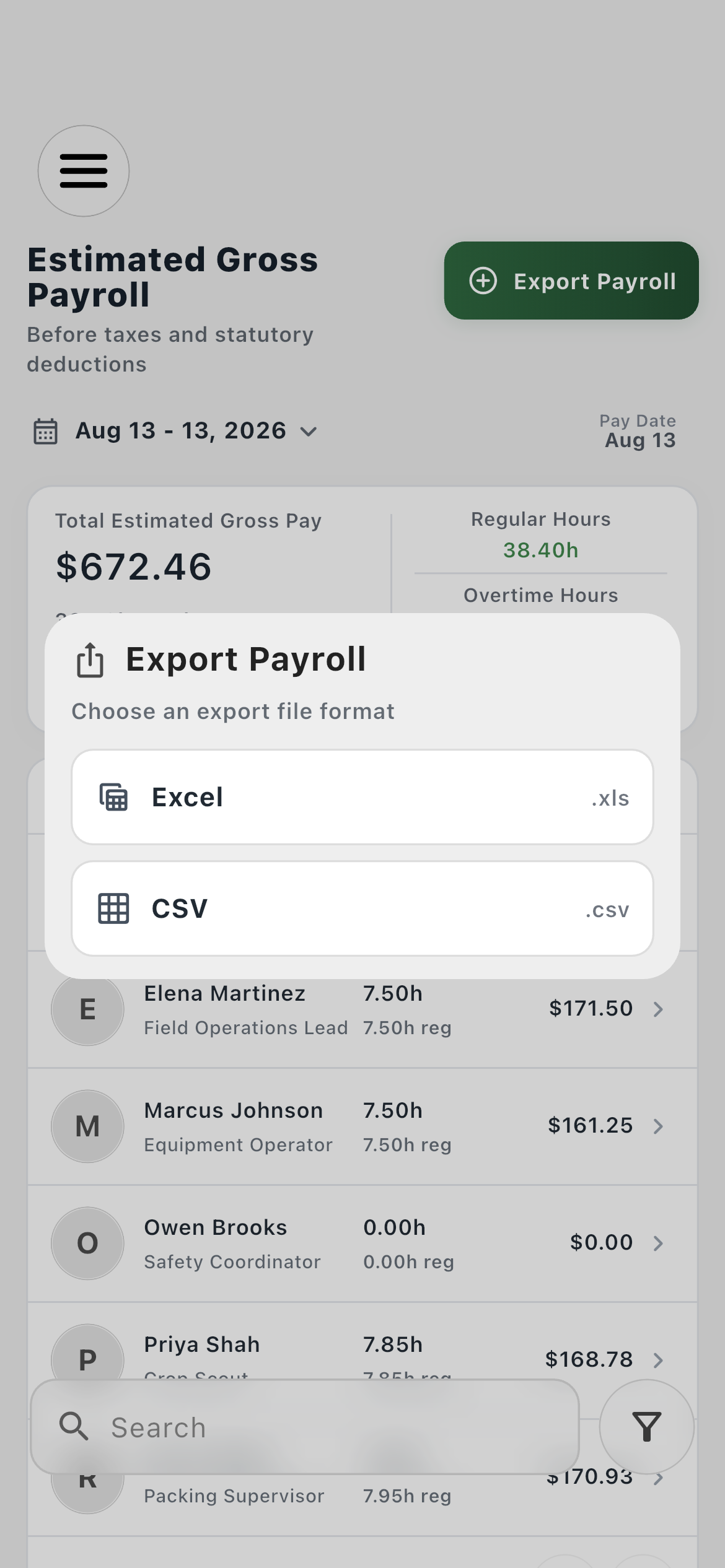
Farmroute payroll export dialog offering Excel and CSV
Estimated gross-pay exports create the Payroll Exports folder when needed and preserve each generated file with a collision-safe name.

How it works in practice

Organized by purpose, governed by ownership.

01
Farm account

Use farm storage for operational records.

The farm’s included storage is the home for farm uploads, retained workforce documents, reusable templates, completed form records, and generated schedule or payroll files. Its usage is billed and managed separately from every employee profile.

  • 10 GB included with the farm subscription
  • Farm-level usage and folder search
  • Largest, smallest, newest, or oldest file inventory in Settings
02
Employee profile

Let worker-owned files follow the person.

An employee upload is attributed to the employee profile rather than to whichever farm is currently selected. Eligible files can be exposed to connected farms, but ending one relationship does not delete the employee’s source file.

  • 500 MB included with the employee profile
  • Stable profile-owned storage across farms
  • Relationship-scoped farm visibility
03
Workforce routing

Keep documents beside the correct worker record.

The farm’s protected Workforce root creates the navigation boundary for worker folders. Farms cannot drop loose files directly into that root; they open the correct worker or the worker profile’s Storage tab so records remain attributed to the right person.

  • One eligible folder per worker relationship
  • Storage tab is a focused worker-folder entry point
  • Overview, Information, Schedule, Storage, and Notes stay connected
04
Intentional retention

Save an employee file without taking the source.

Employee-owned rows visible to a farm offer Save to Cloud Storage. That action creates an independent farm-owned snapshot in the worker’s general storage, leaves the employee source intact, and prevents a later employee deletion or severed relationship from erasing the farm’s retained copy.

  • Clear Saved to Cloud Storage label
  • Independent farm ownership
  • No duplicate snapshot when the same source is saved twice
05
Template records

Separate template, assignment, staging, and final PDF.

The reusable definition stays in Templates. Each request has its own assignment and temporary internal work state. After the required employee stage—and the farm stage when recursive fields exist—the completed PDF is retained as a farm record under that worker’s Template Submissions folder.

  • Protected Templates library
  • No user-facing source or staging UUID folders
  • FRW-# plus template name for the completed PDF
06
Automatic output

Put generated records where the farm expects them.

Creating the first schedule or payroll export automatically creates its named folder inside the current farm account’s storage area. Repeating an export keeps the existing file and selects a collision-safe filename instead of silently overwriting it.

  • Shift Exports
  • Payroll Exports
  • Excel .xls and CSV .csv output

Roles and responsibility

Who does what.

Farm profile

See what the farm owns and what it can only view.

The farm manages its own uploads, templates, exports, submissions, and retained copies while active worker relationships expose eligible employee-owned content with a different ownership state.

  • Farm quota stays separate
  • Worker context stays visible
  • Retention requires an explicit farm copy
Employee profile

Keep personal work files across farm relationships.

The employee manages a separate profile storage area. Connected farms can view eligible documents for operational use, but the employee source does not become a farm asset merely because it appears in a worker folder.

  • Employee quota stays separate
  • Files remain after severance
  • Only eligible connected farms receive visibility

Complete workflow

From start to finish.

  1. 01
    Account owner

    Open the account’s Cloud Storage

    Farmroute resolves whether the signed-in profile is a farm or employee and loads that account’s quota, files, and permitted logical folders.

  2. 02
    Farm

    Use the farm root for operational files

    Upload ordinary farm documents or open Payroll Exports, Shift Exports, Templates, and Workforce from the protected account root.

  3. 03
    Employee

    Upload into profile-owned storage

    The employee file is attributed to the employee profile and counts against the employee’s included storage rather than a connected farm’s quota.

  4. 04
    Farm

    Open the correct worker context

    Enter Workforce and choose the eligible worker, or open the worker from the workforce list and select Storage for the same focused document context.

  5. 05
    Farm

    Distinguish visible sources from retained records

    Relationship-visible employee files remain employee-owned. Farm-owned uploads, completed submissions, and saved snapshots retain their farm record state.

  6. 06
    Farm

    Save a required employee document

    Use Save to Cloud Storage to create an independent farm-owned copy in the worker’s general file area without deleting or transferring the employee source.

  7. 07
    Farm

    Build and assign a reusable template

    Create the template in the protected Templates library, map fields, and request a new completion from an eligible worker.

  8. 08
    Employee and farm

    Complete every required form stage

    The employee fills employee fields. If the template contains recursive fields, the farm completes those fields before the final record is retained.

  9. 09
    Farmroute

    File the completed submission

    Farmroute stores the final farm-owned PDF under Workforce, the correct worker, and Template Submissions using the worker’s FRW number and template name.

  10. 10
    Farmroute

    File generated exports

    Shift and schedule exports go to Shift Exports; payroll exports go to Payroll Exports. Missing folders are created automatically and existing files are not overwritten.

  11. 11
    Account owner

    Review usage and remove files

    Settings provides an itemized account inventory sorted by size or date, while the main storage page supports search, folder navigation, file inspection, and authorized deletion.

Questions and answers

Frequently asked questions.

What is the difference between farm and employee Cloud Storage?

Farm storage belongs to the farm account and starts with 10 GB. Employee storage belongs to the employee profile and includes 500 MB. They have separate quotas, owners, and retention behavior even when a farm can view an employee file through a worker relationship.

Can a farm see files uploaded by a connected employee?

Yes, eligible employee-owned files can appear in the farm’s Workforce worker folder and the worker profile’s Storage tab while the relationship is active. Visibility does not transfer ownership to the farm.

What does Save to Cloud Storage do?

It creates an independent farm-owned copy of an employee source file in the worker’s general farm record area. The employee keeps the source, and deleting that source later does not delete the farm’s saved copy.

What happens to storage when a farm and employee relationship ends?

The employee keeps employee-owned source files. The farm stops seeing those live sources but retains files the farm uploaded, completed employer records such as template submissions, and employee documents it deliberately saved into farm Cloud Storage.

How does the Storage tab inside a worker profile work?

It is a focused entry point into that worker’s storage context. It keeps documents beside the worker’s Overview, Information, Schedule, and Notes while using the same ownership and relationship rules as the Workforce folder in the main storage page.

Where do completed template forms go?

After all required employee and recursive farm stages are complete, Farmroute retains the final farm-owned PDF under Workforce, the submitting worker, and Template Submissions. The visible filename uses the worker’s FRW number followed by the template name.

Where do shift and payroll exports go?

Farmroute creates Shift Exports and Payroll Exports under the current farm account’s storage area when those outputs are first generated. Repeated exports use collision-safe filenames rather than replacing earlier files.

How can an account review what is using storage?

The Storage page shows quota usage, folders, files, search, and file actions. Settings provides an itemized inventory that can be sorted by largest, smallest, newest, or oldest and supports deleting authorized files.
Get started

Build your operation with Farmroute.

We pride ourselves on transparency. No need to call for a quote.